




Want to know how to stop email from going to Promotions in Gmail? If you receive the email, drag it from the Promotions tab to the Primary tab and click Yes when Gmail offers to do the same for future messages. For a permanent rule, create a filter that categorizes the sender as Primary, or turn off the Promotions tab. If you send the email, the fix is different. Authentication, content, and engagement decide where Gmail files your message. Below, we cover both sides step by step, with Google’s own documentation behind every instruction.
What Is the Gmail Promotions Tab?
Quick Answer: The Gmail Promotions tab is one of five inbox categories Gmail uses to sort incoming mail automatically. Gmail files deals, offers, and marketing email there. Promotions is not the spam folder, but it changes whether people notice a message at all, which is why tab placement matters more than most people expect.
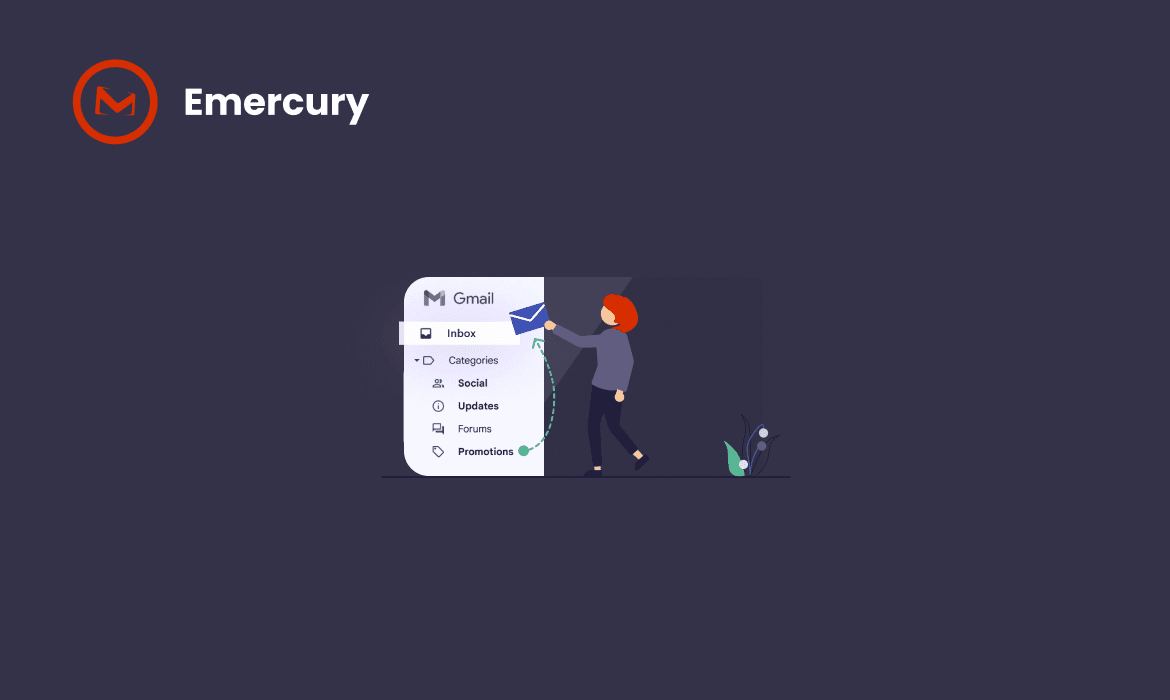
The Gmail Promotions tab is an automatic inbox category for deals, offers, and promotional email. According to Gmail Help, Gmail sorts incoming mail into five categories when you use the “Default” inbox type.
Gmail’s Five Inbox Categories
| Category | What Gmail Files There |
| Primary | Mail from people you know, plus anything not sorted into another tab |
| Social | Mail from social networks and media-sharing sites |
| Promotions | Deals, offers, and other promotional mail |
| Updates | Automated confirmations, notifications, statements, and reminders |
| Forums | Mail from online groups, discussion boards, and mailing lists |
Source: Gmail Help, Organize your emails into categories
Two details from Google’s documentation explain most of the frustration with this tab:
- Notifications only cover Primary. Gmail Help states that new-mail notifications apply only to messages in the Primary category. An email in Promotions arrives silently.
- You cannot create custom categories. Gmail lets you choose which of the five categories to show. Labels are the workaround for any other organization.
The notification gap is the real reason many people search this topic. One user in the r/GMail community described missing restaurant coupons because the Promotions folder never sent an alert. The email arrived. The person never knew.
Promotions Tab vs Spam Folder
The Promotions tab and the spam folder are two different destinations with two different meanings. Promotions is an inbox category for legitimate marketing email that Gmail delivered. Spam is where Gmail sends mail it considers unwanted or risky. Google’s email sender guidelines link spam placement to authentication, user complaint rates, and sending practices.
If your email is in Promotions, it was delivered. If it is in spam, you have a deliverability problem. For that second problem, read our guide on how to avoid email going to spam.
Why Is My Email Going to Promotions Instead of Primary?
Quick Answer: Your email goes to Promotions because Gmail’s classifier reads it as marketing rather than personal correspondence. Gmail weighs who sent it, what it looks like, and how you have treated that sender before. Google does not publish the exact rules, so the reliable fixes are the ones you control directly.
Gmail files email in Promotions instead of Primary when the message looks, reads, and behaves like bulk marketing. Google does not publish its classification rules. What Google does publish points in a clear direction:
- Gmail defines Primary as mail from people you know (Gmail Help).
- Google tells senders not to mix promotions into receipts and to use the same From address for each category of message (Google sender guidelines).
- Google says moving an email to the correct category helps Gmail learn your preferences and sort more accurately over time (Gmail Help).
From the reader’s side, three factors carry the most weight:
- Sender relationship. Mail from a saved contact or someone you reply to looks like correspondence. Mail from a brand you never engage with looks like a broadcast.
- Message format. Branded templates, banner images, multiple buttons, discount wording, and many links are classic marketing patterns.
- Your own corrections. Every time you move a message between tabs, you give Gmail a correction signal for that sender.
Misclassification is real. In a Return Path survey of 1,628 Gmail users, 9.2% said Gmail does not sort their email into the correct tab. The same report found that identical subject lines from one sender sometimes landed in more than one tab. That explains a common complaint: two emails from the same brand, one in Primary and one in Promotions.
How to Stop Email from Going to Promotions in Gmail: 7 Fixes for Readers
Quick Answer: To rescue one sender, move one of their emails to Primary and accept Gmail’s offer to apply it to future messages. For a firmer rule, create a filter that categorizes the sender as Primary. To stop promotional sorting entirely, turn off the Promotions category in your inbox settings on each device you use.
The seven fixes below run from quickest to most permanent. Pick based on whether you want to rescue one sender or remove the tab altogether.
Reader Fixes Compared
| Method | Scope | Where You Set It | How Permanent |
| Drag to Primary | One sender | Computer | Trains Gmail; may need repeating |
| Move to Primary | One sender | Android, iPhone | Trains Gmail; may need repeating |
| Filter: categorize as Primary | One sender or domain | Computer (applies on all devices) | Rule-based; most reliable per sender |
| Star and include starred in Primary | One message | Computer, Android | Per message only |
| Add sender to contacts | One sender | All devices | Supporting signal; not guaranteed |
| Turn off Promotions tab | All promotional mail | Computer, Android, iPhone | Permanent until switched back on |
| Search with category:promotions | Finding missed mail | All devices | Recovery tool, not a fix |
Sources: Gmail Help: categories, Gmail Help: filters
If one or two senders matter, use a filter. If you never want a Promotions tab, turn it off. Dragging alone works for many people, but it is the method most often reported as “not sticking.”
Method 1: Drag the Email to the Primary Tab on a Computer
Dragging an email from Promotions to Primary moves the message and tells Gmail where you want that sender’s mail. Gmail Help confirms this correction helps Gmail sort your email more accurately over time.
- Open Gmail in a web browser.
- Click the Promotions tab.
- Click and hold the email, then drag it onto the Primary tab.
- When Gmail asks whether to do this for future messages from the sender, click Yes.
The future-messages prompt is the step that matters. Without it, you moved one email, not the sender. Answers in Google’s own Gmail Community thread on this issue point to the same prompt. If you miss it, move a second email from that sender and watch the confirmation in the bottom-left corner of the screen.
On a computer, you can also right-click the email, choose Move to tab, and select Primary.
Method 2: Use Move To in the Gmail App on Android and iPhone
The Gmail mobile app moves an email to Primary through the More menu, because you cannot drag between tabs on a phone. The steps are the same on Android and on iPhone and iPad:
- Open the Gmail app.
- Open the email that landed in Promotions.
- Tap More (the three dots).
- Tap Move to.
- Select Primary.
A mobile move sends Gmail the same correction as a desktop drag. If the sender keeps returning to Promotions after a few moves, set up the filter below on a computer.
Method 3: How to Stop Email from Going to Promotions in Gmail Permanently with a Filter
A Gmail filter is the most reliable way to keep one sender out of Promotions, because it applies a fixed rule instead of waiting for Gmail to learn. Gmail Help confirms that a filter can direct a sender’s email to a specific category. Filters are created on a computer, per Gmail Help on filters, but they act on that sender’s mail on every device.
- Open Gmail on a computer.
- Click Show search options (the sliders icon in the search bar).
- In the From field, enter the sender’s address. To cover a whole company, enter only the domain, such as @example.com.
- Click Create filter.
- Check Categorize as and choose Primary.
- Optional: check Never send it to Spam if this sender has also landed in spam.
- Optional: check Also apply filter to matching conversations to move existing emails.
- Click Create filter.
There is a faster route. Check the box next to an email from the sender, click More, and choose Filter messages like these. Gmail fills in the sender’s address for you (Gmail Help).
Filters only act on mail that matches the criteria exactly. If a brand sends from several addresses, filter on the domain. To edit or delete a filter later, open Settings, then See all settings, then Filters and Blocked Addresses.
Method 4: Star Important Emails and Show Starred Mail in Primary
Starring an email puts it in Primary while it also stays in its original category, according to Gmail Help. Stars suit single messages you want to keep in sight, such as a coupon you plan to use this week.
On a computer, open Settings, click Customize under the Default inbox type, and check Include starred in Primary. The Android app has an equivalent “Include in Primary” option (Gmail Help for Android).
Stars do not train Gmail on the sender. Use stars for messages and filters for senders.
Method 5: Add the Sender to Your Contacts
Adding a sender to your contacts lines that sender up with Gmail’s own definition of Primary, which is mail from people you know (Gmail Help). Google’s sender guidelines also state that messages from an address in the recipient’s contacts are less likely to be marked as spam.
- Open an email from the sender.
- Hover over or tap the sender’s name.
- Select Add to contacts.
Treat this as a supporting signal. Google does not document that a contact entry overrides tab sorting for marketing mail. For a guaranteed per-sender result, pair the contact with a filter.
Method 6: Turn Off the Promotions Tab
Turning off the Promotions tab stops Gmail from sorting anything into Promotions, so promotional mail lands in Primary instead. This answers “how do I turn off promotions” and “how to disable Promotions in Gmail.” The change lasts until you switch the tab back on, and nothing is deleted.
Turn Off Promotions on a Computer
Gmail Help gives these steps:
- Open Gmail and click the Settings gear at the top right.
- In Quick settings, under Inbox type, select Default.
- Click Customize.
- Uncheck Promotions.
- Click Save.
Many accounts also show an older path: Settings, then See all settings, then the Inbox tab. Under Categories, uncheck Promotions and click Save Changes.
Turn Off Promotions on Android
- Open the Gmail app, tap Menu, then tap Settings.
- Choose your account.
- Tap Inbox type, then Default Inbox.
- Tap Inbox categories.
- Uncheck Promotions.
Turn Off Promotions on iPhone and iPad
Per Gmail Help for iPhone and iPad:
- Open the Gmail app, tap Menu, then tap Settings.
- Under Inbox, tap Inbox type, then Default Inbox.
- Return to Settings.
- Tap Inbox customizations, then Inbox categories.
- Switch Promotions off.
Check each app you use, because category settings are set per device. Google also notes a hard limit: an inbox with more than 250,000 emails cannot use the Default inbox type until you archive or delete mail (Gmail Help).
The trade-off is clutter. With the tab off, every newsletter and deal competes with personal mail in Primary. When that gets noisy, use Manage subscriptions under More in the left menu on a computer. Gmail Help explains that new mail from a sender you unsubscribe from there goes to spam.
Method 7: Find Missed Emails with the Category Search Operator
The category: search operator finds email inside one tab without scrolling through it. Type category:promotions followed by a sender or keyword, such as category:promotions coupon, into the Gmail search bar (Gmail Help).
This is not a placement fix. It is the fastest way to recover a code, receipt, or confirmation you think went missing, before you set up a filter.
Why Does Gmail Keep Putting Emails Back in Promotions?
Quick Answer: Gmail keeps putting emails back in Promotions when your correction applied to one message instead of the sender, when the sender uses several addresses, or when a new email looks more promotional than the last. Missing the future-messages prompt is the most common cause. A filter on the sender’s domain fixes most repeat cases.
Gmail sending email back to Promotions is the top frustration in the Reddit threads that rank for this keyword. One r/GMail thread on stopping mail from reaching the Promotions tab has 31 answers. The causes behind most repeat cases are mechanical, not random.
Troubleshooting Repeat Promotions Placement
| Symptom | Likely Cause | Fix |
| Only the dragged email moved | The future-messages prompt was skipped or missed | Move another email and click Yes |
| Some emails from a brand land in Primary, others in Promotions | The brand sends from several addresses or subdomains | Filter on the domain, not one address |
| Primary worked for weeks, then stopped | The sender changed its From address or template | Update the filter criteria |
| A filter exists, but mail still lands in Promotions | The filter targets an address the new mail does not use | Compare the From address on the newest email |
| The fix works on desktop but not on a phone | Category settings are set per device | Check Inbox categories in each app |
| The email is in no tab at all | It was archived or sent to a label by another filter | Search the sender in All Mail |
Sources: Gmail Help: categories, Gmail Help: filters
When a fix “stops working,” check the From address on the latest email first. In most cases, the sender changed, not Gmail’s memory.
How Do Senders Keep Emails Out of the Gmail Promotions Tab?
Quick Answer: Senders keep emails out of Promotions by sending genuinely non-promotional content in a conversational format, from a consistent, authenticated address, to an engaged list. No sender can force Primary placement. Marketing email usually belongs in Promotions, so the real goal is correct placement for each message type.
Senders cannot control Gmail’s tabs, but sender decisions shape every signal Gmail reads. This section is for marketers, founders, and developers who want each message type to land where the reader expects it. Start with the baseline Google enforces, then work on content and engagement.
Start with Gmail’s Sender Requirements
Gmail’s sender requirements are the baseline every sender must meet before tab placement is worth optimizing. Since February 2024, Google’s email sender guidelines have set rules for everyone sending to personal Gmail accounts, plus stricter rules for bulk senders. Google’s sender guidelines FAQ adds that enforcement ramped up in November 2025, including temporary and permanent rejections for noncompliant mail.
Gmail Sender Requirements and Thresholds
| Requirement | Rule or Threshold | Applies To | Source |
| Authentication | SPF or DKIM | All senders | |
| Authentication | SPF and DKIM, plus a DMARC record (p=none allowed) | Bulk senders | |
| From domain alignment | Aligned with the SPF or DKIM domain | Bulk senders | |
| User-reported spam rate | Below 0.3% | All senders | |
| User-reported spam rate | Below 0.10%; never reach 0.30% | Recommended target | |
| One-click unsubscribe | Required for marketing and subscribed messages | Bulk senders | |
| Unsubscribe processing | Honored within 48 hours | Bulk senders | Google FAQ |
| DKIM key length | 1024-bit minimum; 2048-bit recommended | All senders | |
| Bulk sender threshold | Close to 5,000 messages per day to personal Gmail accounts | Status is permanent once reached | Google FAQ |
Note: Google counts all messages sent from the same primary domain toward the 5,000 threshold, so mail from subdomains adds up (Google FAQ). One-click unsubscribe follows RFC 8058.
These rules decide whether you reach the inbox at all. They do not decide which tab. But a sender who fails them risks rejection or spam placement, which costs far more than Promotions. Our guide to the Gmail and Yahoo sender requirements covers each rule in detail. If you need help with the DMARC step, our free DMARC Record Generator builds a valid record you can publish in your DNS.
One more point from Google: Gmail does not track open rates and cannot verify open rates reported by third parties (Google). Treat any claim that Promotions placement cuts opens by a fixed percentage with caution. Open rates are one of several email marketing myths worth retiring.
Separate Transactional and Marketing Email
Separating transactional and marketing email is the most effective sender-side fix for wrong-tab placement. Google’s sender guidelines tell senders not to mix content types, and give the example of promotions inside sales receipts. A receipt with a discount banner sends Gmail two signals, and the promotional signal often wins.
Practical rules:
- Keep receipts, password resets, shipping updates, and account alerts free of offers, product grids, and coupons.
- Send each type from its own From address, such as receipts@, alerts@, and deals@. Google recommends this exact pattern.
- If you send from more than one IP address, Google recommends a different IP for each message type, such as one for account notifications and one for promotions.
Not sure where the line sits? Our guide on what transactional email is breaks down which messages count. Transactional mail usually belongs in Primary or Updates. Marketing belongs in Promotions.
We keep this split at the product level. Our SMTP Relay is a separate product for transactional email, sent through RESTful email APIs, apart from our email marketing platform for campaigns. Your receipts and alerts get a separate sending path from your newsletters.
Use One Consistent From Address per Message Type
A consistent From address per message type helps Gmail recognize what each stream contains. Google’s guidance is explicit: messages in the same category should share the same From address (Google). Rotating addresses resets the history Gmail and your readers have with you.
Google’s display name rules matter too. A display name should identify the sender only. Google warns against putting message content, urgency phrases, or emojis that imitate graphics in display names (Google). “Maria at Acme” identifies a sender. “LAST CHANCE SALE” does not.
Write Like a Person, Not an Ad
Writing like a person means subject lines, preheaders, and body copy that read as correspondence rather than an advertisement. Google requires subject lines and headers to represent the message accurately, and says not to start subject lines with “Re:” or “Fwd:” unless the message is a real reply or forward (Google). Faking a conversation is not a shortcut. It breaks Google’s guidelines.
Promotional vs Conversational Phrasing
| Element | Reads as Promotional | Reads as Conversational |
| Subject line | FLASH SALE: 50% OFF EVERYTHING!!! | Your spring refill guide is ready |
| Preheader | Shop now and save before midnight | Three picks based on your last order |
| Opening line | Don’t miss our biggest deal of the year | Hi Dana, you asked about the refill plan |
| Call to action | Five buttons: Shop, Browse, Follow, Download, Save | One text link to the page the reader needs |
| Sign-off | The Acme Marketing Team | Maria, Customer Success at Acme |
If a marketing email is truly promotional, a softer subject line will not change what it is. Use the right-hand column for messages that are not promotions but look like them: onboarding, account updates, and replies to customer requests.
Cut Links, Images, and Template Weight
Cutting links, images, and template weight makes a message look less like a bulk campaign. Marketing templates often carry a logo header, a navigation bar, a hero image, a product grid, social icons, and a dense footer. Each element is normal for marketing. Together, they describe a broadcast.
For messages that should not land in Promotions:
- Use a single column and mostly text.
- Keep only the one or two links the reader needs.
- Remove decorative images, and keep functional ones, such as an item photo in an order confirmation.
- Always include a plain-text version.
- Never hide content. Google warns that using HTML and CSS to hide content can get messages marked as spam (Google).
Before you send, our Content Scoring checks your email content for spam likelihood inside our platform. Spam risk and tab placement are separate problems, but bloated templates often feed both.
Personalize Beyond the First Name
Personalization beyond the first name makes an email relevant to one reader, which is what Primary mail usually is. A first-name merge tag on a mass blast still looks like a mass blast. Content that changes with the reader’s data reads differently.
Examples that hold up:
- An order confirmation that lists the exact items and the delivery date.
- A renewal reminder that names the plan and the renewal date.
- An onboarding email that changes based on which setup step the user skipped.
Our Smart Personalization shows conditional content based on subscriber data, so one template can deliver a different message to each reader. Our AI subject line generator helps you draft plain, specific subject lines to test against your current ones.
Clean Your List and Protect Engagement
Cleaning your list protects engagement, which shapes tab placement indirectly and spam placement directly through complaint rates. Google tells senders to mail only people who opted in, to confirm each address before subscribing it, and to consider unsubscribing recipients who don’t open or read messages (Google). Low engagement and complaints drag down your email sender reputation, and a damaged reputation risks spam placement, not just Promotions.
A simple engagement routine:
- Confirm new subscribers with a double opt-in.
- Suppress hard bounces and complainers immediately.
- Send a re-engagement campaign to subscribers who have been inactive for several months, then remove those who do not respond.
- Never buy lists. Google tells senders not to purchase email addresses (Google). Our guide to email list management covers the full routine.
Our List Hygiene runs during import and removes spam traps, bots, seed addresses, and known complainers before they receive a campaign. Our Suppression Lists then keep excluded contacts out of every future send.
Ask New Subscribers to Move You to Primary
Asking new subscribers to move your email to Primary works because each move is a direct correction signal from the reader. The welcome email is the right moment, since the reader just opted in and is most likely to act. Our guide to building a welcome journey covers where this request fits in the sequence.
A short, honest request works best:
“If this landed in your Promotions tab, drag it to Primary and click Yes when Gmail asks about future emails. That way you won’t miss your order updates.”
Only ask when Primary matches what you send. If your list gets daily discount emails, moving them to Primary puts offers where readers expect personal mail. That invites complaints, not loyalty.
In our Journey Builder, this request can sit in the first step of a welcome sequence, triggered the moment someone subscribes.
Test Tab Placement Before and After Changes
Testing tab placement means sending each important template to real Gmail test accounts and recording which tab it lands in before and after every change. Gmail does not report tab placement to senders, and Postmaster Tools reports reputation and spam data, not tabs.
- Create two or three fresh Gmail accounts that have never interacted with your brand.
- Send the current version of the template and record the tab in each account.
- Change one variable, such as removing the banner, cutting links, or changing the From name.
- Send again and record the result.
- Repeat across several days, because one send proves little.
After the seed test, use our A/B testing to compare versions on real audience engagement. Tab placement is a means. Engagement and revenue are the outcome.
Should Marketing Emails Even Try to Avoid the Promotions Tab?
Quick Answer: Most marketing emails should not try to avoid the Promotions tab. Promotions is where Gmail users expect offers, and misleading tactics break Google’s guidelines. The better strategy is to file each email type correctly, then compete for attention inside Promotions, where Gmail now ranks senders by engagement.
Marketing email usually belongs in Promotions, and fighting that placement can backfire. Return Path’s research shows that many tab users visit Promotions on purpose, and Google’s 2025 update rewards engaging senders inside the tab.
How Gmail Users Engage with Tabs
| Metric | Value | Source |
| Gmail users who use tabs | 33.8% | Return Path (2016 data) |
| Tab users with Promotions enabled | 60.0% | Return Path (2016 data) |
| Users who check Promotions at least once a day | 45.1% | Return Path (2016 data) |
| Users who never check Promotions | 19.9% | Return Path (2016 data) |
| Users who say Gmail sorts email incorrectly | 9.2% | Return Path (2016 data) |
| Gmail email volume classified as Promotions | 68.4% | Return Path (2016 data) |
| Gmail share of tracked email opens, September 2026 | 16.10% | Litmus Email Client Market Share |
Note: Return Path data comes from a December 2016 survey of 1,628 Gmail users and an analysis of more than 6 billion messages, published in “The Email Marketer’s Guide to Gmail Categories.” Return Path is now part of Validity. Tab habits have likely shifted since then, so treat these figures as directional. Litmus open shares lean toward Apple Mail because of Apple’s Mail Privacy Protection.
Promotions is not a dead zone. Almost half of surveyed tab users check it daily. But about one in five never does, so a transactional email misfiled there is a real risk. Protect transactional placement first. Then compete inside Promotions with marketing.
Inbox Placement and Read Rates by Gmail Tab
| Gmail Tab | Inbox Placement Rate | Read Rate |
| Updates | 86.8% | 28.0% |
| Social | 87.2% | 22.4% |
| Primary (no classification) | 55.5% | 22.0% |
| Forums | 77.8% | 21.1% |
| Promotions | 84.5% | 19.2% |
Source: Return Path, The Email Marketer’s Guide to Gmail Categories (2016 data). Rates cover all Gmail users, whether or not tabs were enabled.
Promotions had the lowest read rate, but only 2.8 points below unclassified Primary mail. Updates, home of receipts and confirmations, had the highest. That supports a clear plan: keep transactional mail clean so it reaches Updates or Primary, and accept Promotions for marketing.
Match Each Email Type to Its Target Tab
Matching each email type to its target tab turns “avoid Promotions” into a realistic, measurable goal.
Target Gmail Tab by Email Type
| Email Type | Expected Tab | Sender Priority |
| Password reset or login code | Primary or Updates | Never include promotions |
| Order confirmation or receipt | Updates or Primary | Keep offers out |
| Shipping and delivery update | Updates | Clear subject, no coupons |
| One-to-one sales or support reply | Primary | Plain text, personal sender |
| Welcome and onboarding email | Primary or Promotions | Conversational, one call to action |
| Newsletter | Promotions or Primary | Value-first content |
| Sale, discount, or product launch | Promotions | Compete inside the tab |
Basis: Google’s category definitions (Gmail Help) and sending practices (Google). Actual placement varies by recipient.
Compete Inside the Promotions Tab
Competing inside the Promotions tab means earning visibility from Gmail’s relevance sorting and annotations instead of trying to escape the tab. On September 11, 2025, Google announced a “most relevant” sort for Promotions that favors the senders and brands each user engages with most. Users can switch back to “most recent” sorting, and the update rolled out on mobile for personal Google accounts.
Gmail also supports Promotions tab annotations, such as deal badges, deal cards, and rich image previews that you add through markup (Google for Developers). Two facts from Google’s annotations FAQ set expectations:
- Annotations have no effect on the Gmail tab classifier. They will not move an email out of Promotions.
- Gmail can feature an email in Promotions based on previous user engagement, with or without annotations.
The lever in both features is engagement. Senders whose readers open, click, and keep reading are the senders Gmail surfaces first.
Gmail Promotions Tab Checklist for Senders
This Gmail Promotions tab checklist summarizes every sender-side fix in this guide, in the order we recommend working through it.
| Step | Check | Pass Condition |
| 1 | Authentication | SPF, DKIM, and DMARC pass, with the From domain aligned |
| 2 | Spam rate | Below 0.10% in Postmaster Tools |
| 3 | Unsubscribe | One-click header present; requests honored within 48 hours |
| 4 | Stream separation | Transactional and marketing mail use different From addresses |
| 5 | Content mixing | No offers inside receipts, resets, or alerts |
| 6 | Display name | Identifies the sender only; no urgency words or emojis |
| 7 | Template weight | Transactional templates are single-column and text-led |
| 8 | Link count | Non-promotional emails carry only the one or two links needed |
| 9 | List quality | Double opt-in; inactive and bounced contacts removed |
| 10 | Welcome request | Primary move requested only where it fits the content |
| 11 | Seed testing | Tab recorded in fresh Gmail accounts before and after changes |
Sources: Google email sender guidelines, Google sender guidelines FAQ
Steps 1 to 3 protect delivery.
Steps 4 to 8 influence classification.
Steps 9 to 11 build the engagement Gmail rewards.
How We Help Your Emails Reach the Right Gmail Tab
We help your emails reach the right Gmail tab by giving you control over the signals Gmail reads, plus email experts who help you use that control. At Emercury, we build for performance marketers who need every message to land where it belongs. No email platform can promise Primary placement, because Gmail makes that decision for each reader.
Here is how our platform maps to the fixes in this guide:
| Fix in This Guide | What We Provide |
| Authentication | The free DMARC Record Generator linked above |
| List quality | List Hygiene at import, plus Suppression Lists |
| Content checks | Content Scoring before every send |
| Relevance | Smart Personalization and A/B testing |
| Welcome requests | Journey Builder with event-based triggers |
| Transactional separation | SMTP Relay as a separate product, with a free tier of 100 emails per day |
| Expert help | An in-house human support team, with a delivery analyst on Pro and a dedicated delivery analyst on Scale |
We also keep our core features available on every tier, so smaller senders get the same core tools as larger ones. And when your placement drops, you talk to an email expert, not a chatbot.
Conclusion
Tab placement is not a mystery once you separate the two sides of the problem. Readers control where a sender lands for them. Senders control the signals Gmail reads before any reader acts.
Now you know how to stop email from going to Promotions in Gmail from both sides of the inbox. As a reader, move the sender to Primary, add a filter, or turn the tab off. As a sender, authenticate, separate transactional from marketing mail, write like a person, and earn engagement. If you send email and want your messages filed where subscribers expect them, start with our Forever Free plan, with 2,000 contacts and 12,000 monthly sends at no cost.
Frequently Asked Questions
How do I make emails go to Inbox instead of Promotions on Gmail?
Move one email from that sender to the Primary tab and choose Yes when Gmail offers to apply the change to future messages. On a computer, you can lock the result in with a filter set to categorize the sender as Primary. If you want every email in one inbox, turn off the Promotions category in your inbox settings instead.
How do I turn off Promotions in Gmail?
Turn off Promotions by unchecking the Promotions category. On a computer, open Settings, click Customize under the Default inbox type, uncheck Promotions, and save. In the Android or iPhone app, open Settings, go to Inbox categories, and switch Promotions off. Promotional email then lands in Primary, and nothing already in the tab is deleted.
Why is my email going to Promotions instead of Primary?
Gmail treats the email as marketing based on the sender, the format, and your past behavior. Branded templates, several links, discount wording, and a sender you rarely engage with all point toward Promotions. Gmail does not publish its rules, so the dependable fix for a reader is a filter, and the dependable fix for a sender is a correctly typed message.
How do I get an email out of Promotions in Gmail?
Drag the email to the Primary tab on a computer, or open it in the mobile app and tap More, then Move to, then Primary. Moving one email only relocates that message unless you confirm Gmail’s prompt about future messages. Starring the email also shows it in Primary while it stays in Promotions.
How do I stop Promotions in Gmail on iPhone?
On iPhone, open the email, tap More, tap Move to, and choose Primary to move one sender. To turn the tab off, go to Settings, then Inbox customizations, then Inbox categories, and switch Promotions off. Gmail filters are created on a computer, so build a Primary filter there when a sender keeps returning to Promotions.
How do I stop Promotions in Gmail on Android?
On Android, open the Gmail app, tap Menu, then Settings, pick your account, and tap Inbox categories. Uncheck Promotions to remove the tab entirely. To keep the tab but rescue one sender, open their email, tap More, tap Move to, and select Primary. Repeat a few times, or set up a filter on a computer.
Why does Gmail keep moving emails back to Promotions after I drag them?
Usually the drag moved only one message, or the sender’s next email came from a different address. Gmail asks whether to apply your choice to future messages, and skipping that prompt leaves the sender unchanged. A filter on the sender’s domain, such as @brand.com, covers every address the brand uses and does not depend on Gmail learning.
Will I get notifications for emails in the Promotions tab?
No. Gmail sends new-mail notifications only for messages in the Primary category, according to Gmail Help. That is why people miss coupons and confirmations sitting in Promotions. If you need alerts for a sender, create a filter that categorizes their mail as Primary, or turn off the Promotions tab so everything arrives in Primary.
Is the Promotions tab the same as the spam folder?
No. Promotions is an inbox category for legitimate marketing email that Gmail delivered. The spam folder holds messages Gmail considers unwanted or risky. A message in Promotions points to a classification question, while a message in spam points to a deliverability problem, such as failed authentication, high complaint rates, or poor list quality.
Does adding a sender to contacts keep their emails out of Promotions?
It helps but does not guarantee it. Gmail defines Primary as mail from people you know, and Google notes that mail from saved contacts is less likely to be marked as spam. Google does not document a contact entry overriding tab sorting for marketing mail, so pair the contact with a filter when placement matters.
How do I move emails from Primary to Promotions in Gmail?
Use the same steps in reverse. On a computer, drag the email from Primary onto the Promotions tab and confirm the prompt for future messages. In the mobile app, open the email, tap More, tap Move to, and choose Promotions. For a fixed rule, create a filter that categorizes the sender as Promotions.
Does turning off the Promotions tab delete my promotional emails?
No. Turning off the Promotions category only changes where Gmail displays those messages. Existing and future promotional emails appear in Primary instead, and you can switch the tab back on at any time. If the result feels cluttered, use Manage subscriptions to unsubscribe from senders you no longer read rather than deleting mail in bulk.
Why do some emails go to Promotions in Gmail and others from the same sender don’t?
Gmail classifies each message, not just each sender. An order confirmation and a sale announcement from the same brand can land in different tabs because they look different. Return Path found that even identical subject lines sometimes landed in more than one tab. Brands that send from several addresses make this inconsistency more likely.
How do I stop emails from going to Promotions in Outlook?
Outlook has no Promotions tab. The closest equivalent is Focused Inbox, which splits mail into Focused and Other. According to Microsoft Support, you can right-click a message in Other and choose Always Move to Focused to send that sender’s future mail to Focused. You can also switch Focused Inbox off entirely in Outlook’s settings.
Can senders guarantee their emails land in Gmail’s Primary tab?
No. Gmail decides tab placement for each recipient, and Google states that it does not accept allowlist requests from email providers. Senders can only influence placement through authentication, content that matches the message type, consistent From addresses, and engaged lists. Any service that promises guaranteed Primary placement is promising something it cannot control.
Do Gmail Promotions annotations keep my email out of the Promotions tab?
No. Google’s annotations FAQ states that annotations have no effect on the Gmail tab classifier. Deal badges, deal cards, and image previews only display inside the Promotions tab. Use annotations to stand out among promotional emails and support engagement, not to change which tab your message lands in.
Should transactional emails like receipts land in Promotions?
No. Receipts, password resets, and shipping notices should land in Primary or Updates. When they reach Promotions, the usual cause is mixed content, such as discount banners or product grids added to a receipt. Google tells senders not to mix promotions into transactional messages and to use a different From address for each message type.
Can I create a Gmail filter in the mobile app?
Gmail filters are created on a computer, according to Gmail Help. Once a filter exists, it applies to incoming mail on every device, including the Android and iPhone apps. From a phone alone, the closest option is opening the email, tapping More, then Move to, and choosing Primary each time the sender lands in Promotions.
Does Gmail’s most relevant sort change which tab my email lands in?
No. The most relevant sort, which Google announced in September 2025, changes the order of emails inside the Promotions tab, not which tab they land in. It favors senders each person engages with most. Users can switch back to most recent sorting at any time, so recency still matters for part of your audience.